The domain editor
Not a step — a dialog. It opens automatically the first time the positions screen appears if BIWT detects a mismatch, and you can open it any time from that screen with Domain Settings….
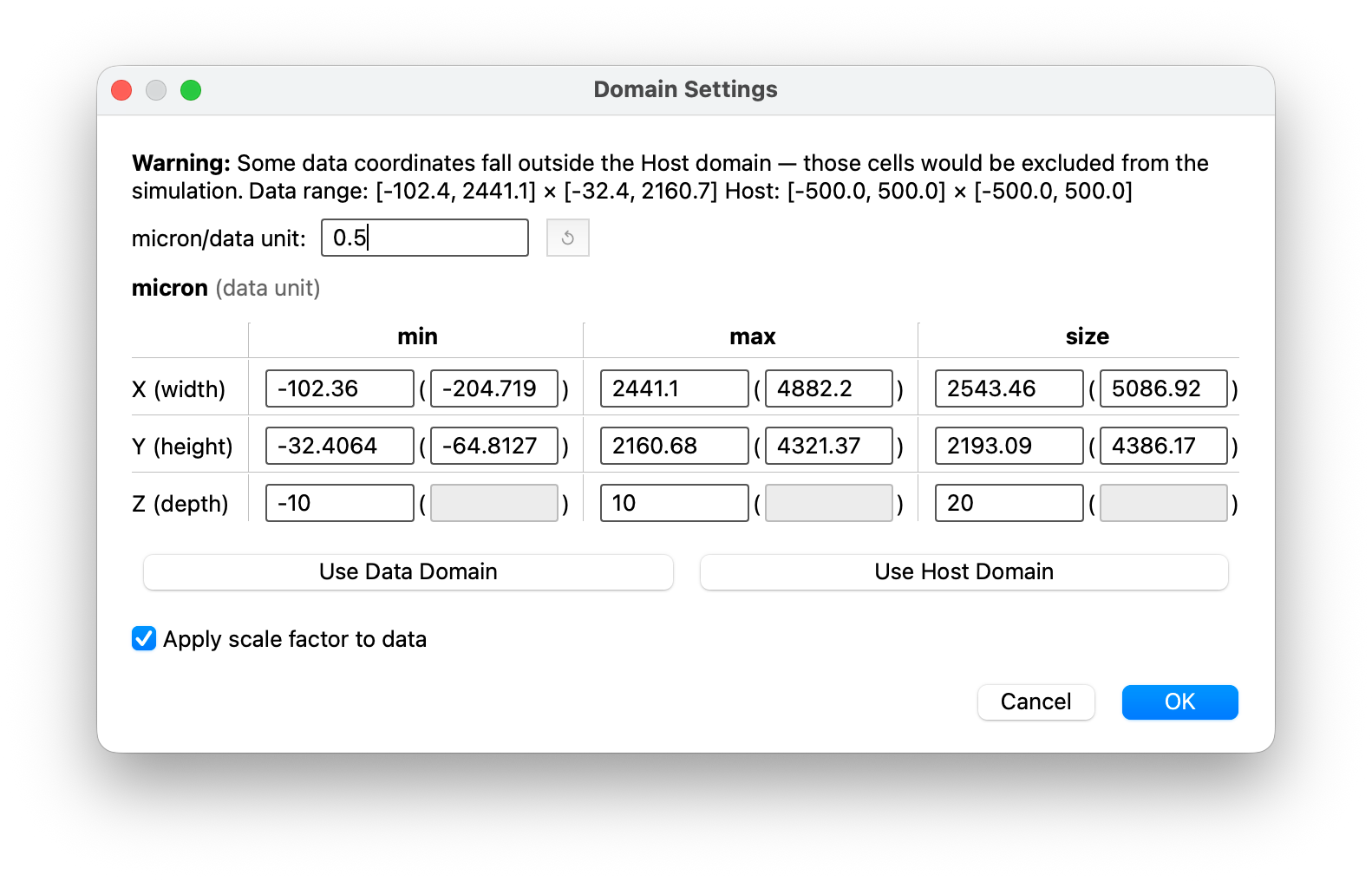
Data units vs host units
Your file has coordinates in whatever the instrument or analysis produced — often Visium pixels, sometimes microns, sometimes an arbitrary embedding. BIWT calls these data units and deliberately refuses to guess what they mean.
Your simulation has a domain in host units — microns, for PhysiCell.
These are not the same thing, and conflating them is the single most common way to get a nonsensical initial condition. A Visium array spanning 8,000 pixels is not 8,000 µm across.
The scale factor
The bridge between the two is one number: host units per data unit. The field is labeled
as a ratio using the host's own unit — micron/data unit for PhysiCell.
- For 10x Visium data, BIWT reads µm-per-pixel out of the file and pre-fills it. The ↺ button restores the file's number, and is available whenever the field differs from it.
- For everything else — CSV, Seurat objects, non-Visium — there is no factor in the file.
The field shows a
none found in fileplaceholder and you supply one if you need it.
Emptying the field means no factor. It does not quietly fall back to the file's value. The
parenthesized mirrors clear and grey out, and placement uses your data's raw extent centered in
the domain. The placeholder tells you how to get the file's number back
(none — ↺ restores 0.5), and ↺ becomes available the moment the field stops matching the file.
A zero, negative, or unparseable factor is treated the same way: there is no usable conversion, so the mirrors clear.
Reading the grid
The grid has one row per axis and three columns — min, max, and size. So the
X row carries X min, X max, and the width; the Y row carries the height; the Z row the
depth.
Every value appears twice. The plain field is in host units; the field in parentheses beside it is the same value in data units.
The two stay in sync through the factor: edit either and the other updates (×F or ÷F). With no factor set, every parenthesized field greys out and you work purely in host units.
Two buttons fill the grid for you:
- Use Data Domain — data units get your raw data bounds; host units get raw × factor (or raw, with no factor).
Use <host> Domain— host units get the host's bounds verbatim.
Why the Z row is greyed out on the right
Z carries the same cells as x and y, but its parenthesized fields are inert. The factor converts a measurement in data units, and z is not one — it is a slab depth BIWT supplies (±10 µm by default) for data that is really two-dimensional.
Size is editable
The size fields are not just readouts. Editing a bound updates that axis' size, and typing a size moves that axis' maximum, leaving the minimum where you put it. Other axes are untouched. It works from either unit column.
Anchoring the minimum means exactly one bound moves, so the two are independently settable —
set X min to -300, then set the X size to 1000, and you get -300 … 700.
The OK button is gated
OK stays disabled until every bound is a number and each minimum is below its maximum; the offending fields are highlighted so you can see which ones are blocking. Equal bounds count as invalid too.
Cancel is never gated.
Apply scale factor to data
A checkbox, on by default.
- On — cells are scaled by the factor when placed. Data extent × F becomes the size the cells occupy.
- Off — cells are placed at their raw numeric extent, centered in the domain. The factor field stays live and the columns still sync; only placement ignores it.
Turning it off is useful when your coordinates are already in host units and the factor is there for reference, or when you want to see the raw extent before deciding.
Why the dialog opened by itself
BIWT compares the data extent to the domain, in host units, and classifies the fit:
| Classification | Meaning |
|---|---|
| outside | A data boundary exceeds the domain — cells would fall outside and be excluded |
| small | Data fits, but covers less than 50% of an axis or less than 50% of the 2D area — cells would be a small island in a large box |
| (none) | Close enough; no dialog |
No dialog appears when the domain came from the fallback default.
What gets saved
On OK: the host-units bounds become the domain used for placement, the factor and the apply-scale state are remembered, the positions preview redraws, and the change is undoable from the positions screen.
On Cancel: nothing is written and nothing redraws — whatever domain was already in effect stays in effect. The first time the dialog opens that is the host's domain; if you had edited the domain earlier, your previous edit is kept, not discarded.
Known limitation: non-micron host units
The auto-detected Visium factor is in µm per pixel. If the host works in different units — nanometers, say — the seeded value is not converted and will be wrong by that conversion factor. Override it manually until this is fixed.